
In recent years, the famous download manager Internet Download Manager has received many updates, which bring a variety of new features.
Category: Tutorials
In this category, you will find all possible tutorials about Internet Download Manager software.

Enable and Use IDM Extension in Incognito Mode on Chrome, Firefox, Brave
Private Browsing Mode is a feature offered by most web browsers for surfing in incognito mode on a computer or smartphone. The browser does not load extensions installed in Private Browsing.
Discover in this article, how to enable IDM extension in incognito mode to speed up your downloads.
How to Browse in Private Mode on Brave, Google Chrome, Firefox
Private Mode is a function of most web browsers that allows you to browse the web without browsing data such as history or cookies being stored on the client computer at the end of the session.
To launch a private browsing window, check at the top right of your web browser, click on the icon allowing you to open the browser menu. Select «New Incognito Window» for Chrome, Firefox and Brave or «New inPrivate Window» for MS Edge. The procedure is the same for Google Chrome on Android and all other browsers.
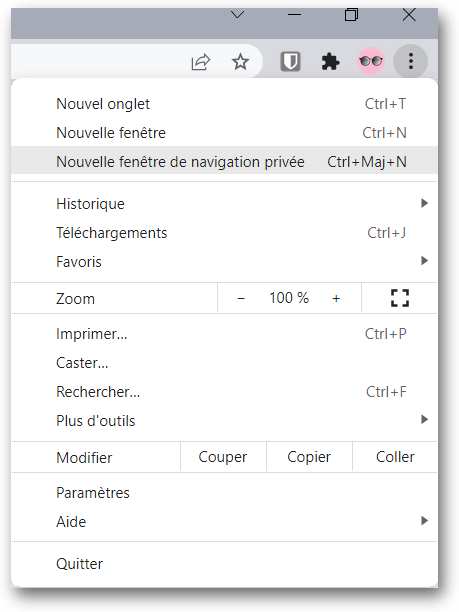
Brave Browser also has a «Private Browsing with Tor» function, it is a classic incognito mode with Tor added. Tor is an encrypted network to prevent the sites you visit from knowing your IP address by passing your requests through different Tor servers before they reach their destination.
How to Enable IDM Extension in Incognito Mode
- Open browser extensions page
On Google Chrome, Click on Google Chrome main menu, In More tools, click on « Extensions ». Direct address : chrome://extensions/
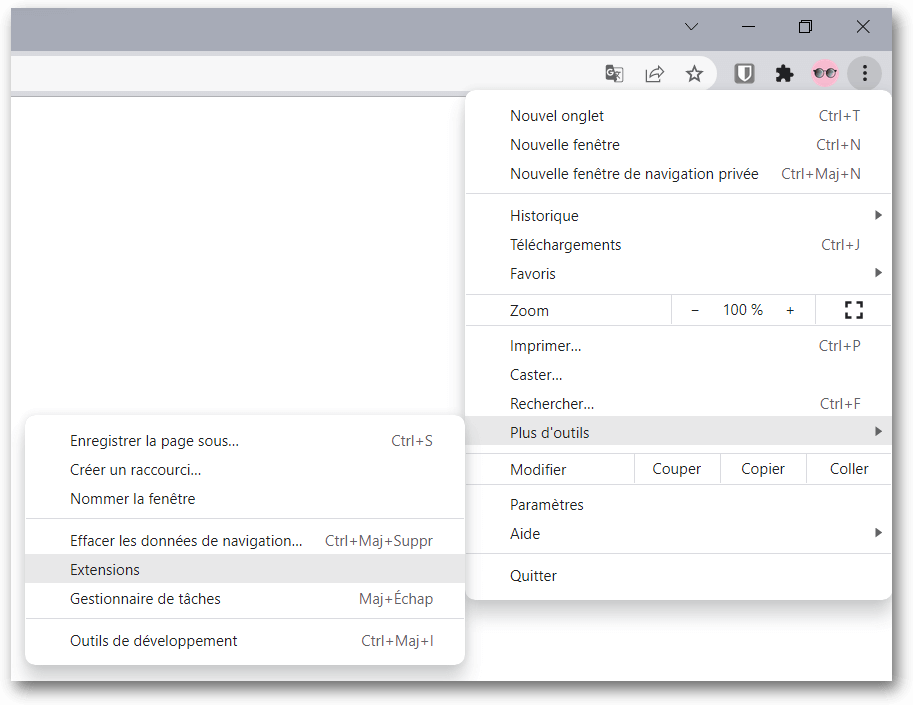
On Brave, Open browser main menu and click on « Extensions » (Same process as Chrome). Direct Address : brave://extensions/
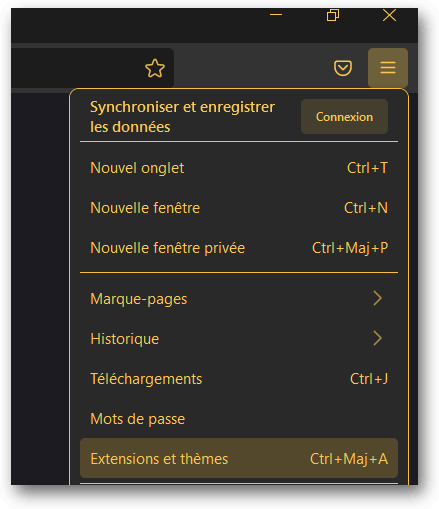
On Mozilla Firefox, Launch the Firefox main menu and click on « Extensions and Themes ». Direct Address : about:addons
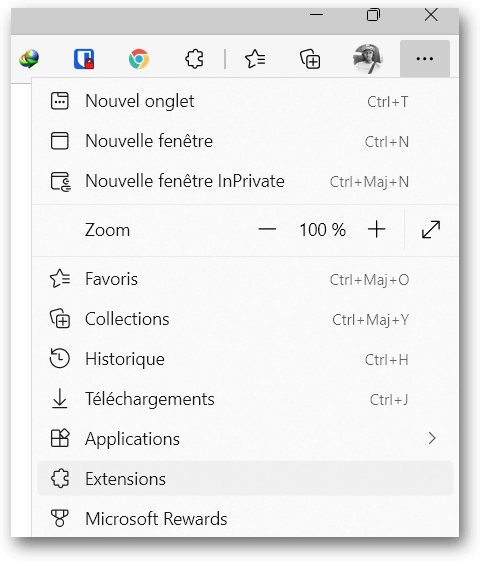
On Microsoft Edge, Launch browser menu, click « Extensions ». You will directly have the list of extensions installed on Edge. Choose IDM Integration Module, in more action and click on Manage extension.
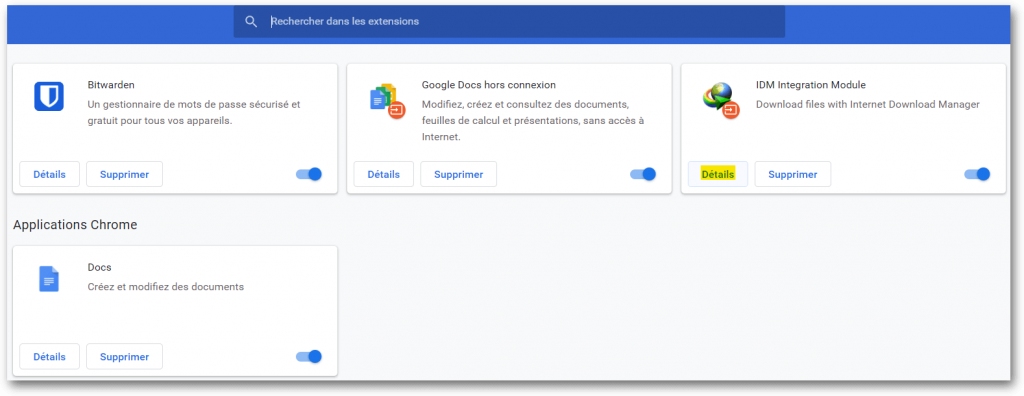
- Find the IDM Integration Module extension in the list of extensions and click on Details to open the settings of IDM Integration Module extension. If you can't find the IDM extension in the list, download IDM again and check if IDM integration was well done.
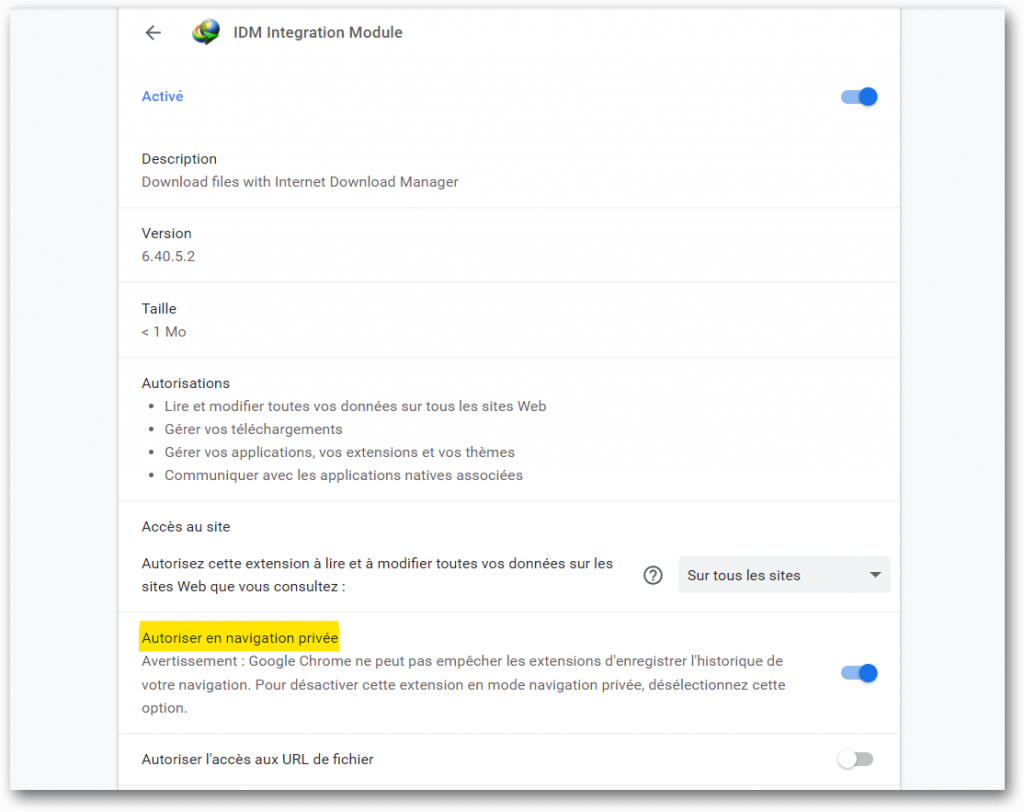
- Enable « Allow in incognito mode » option to use IDM extension in incognito.
Conclusion
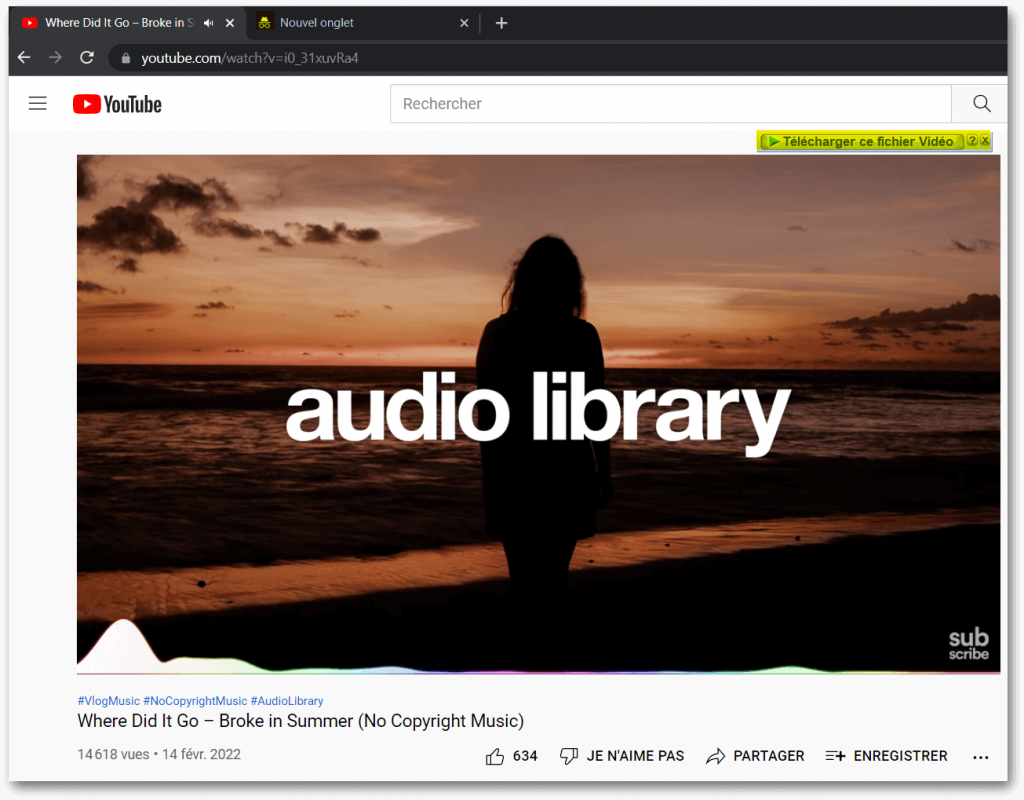
IDM Integration Module extension will now be active in Incognito Mode. You can download your videos in private browsing.

How to Download YouTube or Facebook Video with IDM
How to download YouTube videos or Facebook is a regular query on google, one of the most popular. Today, everyone should know at least one free method to download the video on your iPhone or Android, or MacOS X, or Windows.
The easiest method to save a YouTube video on PC is to use Internet Download Manager, the best download manager on Windows.
(more…)
IDM Android APK – Top 10 Best Download Managers for Android in 2022
Les gestionnaires de téléchargement ont été conçus pour donner aux utilisateurs le contrôle total sur leurs téléchargements. Internet Download Manager est sans doute le meilleur gestionnaire de téléchargements sur Windows, Il peut augmenter la vitesse de téléchargement jusqu’à 5 fois par rapport à la vitesse normale. (more…)

How to Completely Uninstall Internet Download Manager (IDM) ?
You no longer need this software, Internet Download Manager ? You want to delete it from your computer ? It is your right. Here is a detailed guide on how to uninstall Internet Download Manager, delete all the traces of the software IDM from your Computer.
(more…)
How to Download Torrent with Internet Download Manager – 5 Ways
We most often find complete software, movies on torrent sites. To download them, we need torrent software. However it is also possible to download for example a movie in torrent with Internet Download Manager or any download manager. Here's how.
(more…)